
Enrich Leads with Properties
Last updated August 23, 2026
Properties answer "what exactly do I need to know about every lead?" and, when the answer is a person, they find the human with verified contact details.
A recommended company is half an answer. Properties get you the other half: the specific data you need on every lead (headquarters, funding stage, tech stack) and, above all, who to talk to. This page shows you how to add properties, how Pioneer fills them in, and how to get data you can act on.
Properties turn a card into a dossier
Properties are custom research questions asked of every lead in a pipeline. Think of them as columns in your lead spreadsheet, except Pioneer researches the answers from the web.
Examples:
- LinkedIn URL
- Company headquarters
- Founding year
- Number of employees
- Technology stack
- Key contact email
Every lead also has basic built-in properties filled automatically: Name, URL, and a brief Description.
Add a property
- On your pipeline board, find the Preferences column, where your properties are listed
- Click the pencil at the top of the column to open the editor
- Add a property: name it, pick a type (text, URL, email, number, date, address, or person), and describe what you want to extract
Pioneer also suggests useful properties for your pipeline under Recommended actions in the Preferences column; click a suggestion to review and add it.
Name properties for what they extract. "Company LinkedIn URL" and "Headquarters City" are unambiguous; "contact info" makes Pioneer guess what you mean. The description is your chance to be precise, so use it.
How enrichment fills them in
When a lead is processed, Pioneer researches each property from public web sources, extracts the value, and records what it found. Two rules matter for how you read the results:
- If the data isn't public, it can't be extracted. Internal metrics, unpublished emails, and private plans come back empty across the board. That's the property telling you to ask a different question.
- An honest blank beats a confident guess. When Pioneer can't find a trustworthy answer, the field stays empty and says so, rather than being filled with something plausible.
Enrichment happens on leads you already have, and you never pay to learn more about a lead that's already on your board.
When the answer is a person
Some data points aren't strings; they're people. When you need to know who to talk to at a lead (the CEO, a founder, the head of partnerships), use a Person property instead of separate text properties for their name, email, and LinkedIn.
How it works
- Add a property and set its type to Person (e.g., "CEO" or "Head of Partnerships")
- During enrichment, Pioneer identifies the actual person in that role and researches them
- The person appears on the lead as a clickable chip with their name and photo
The contact card
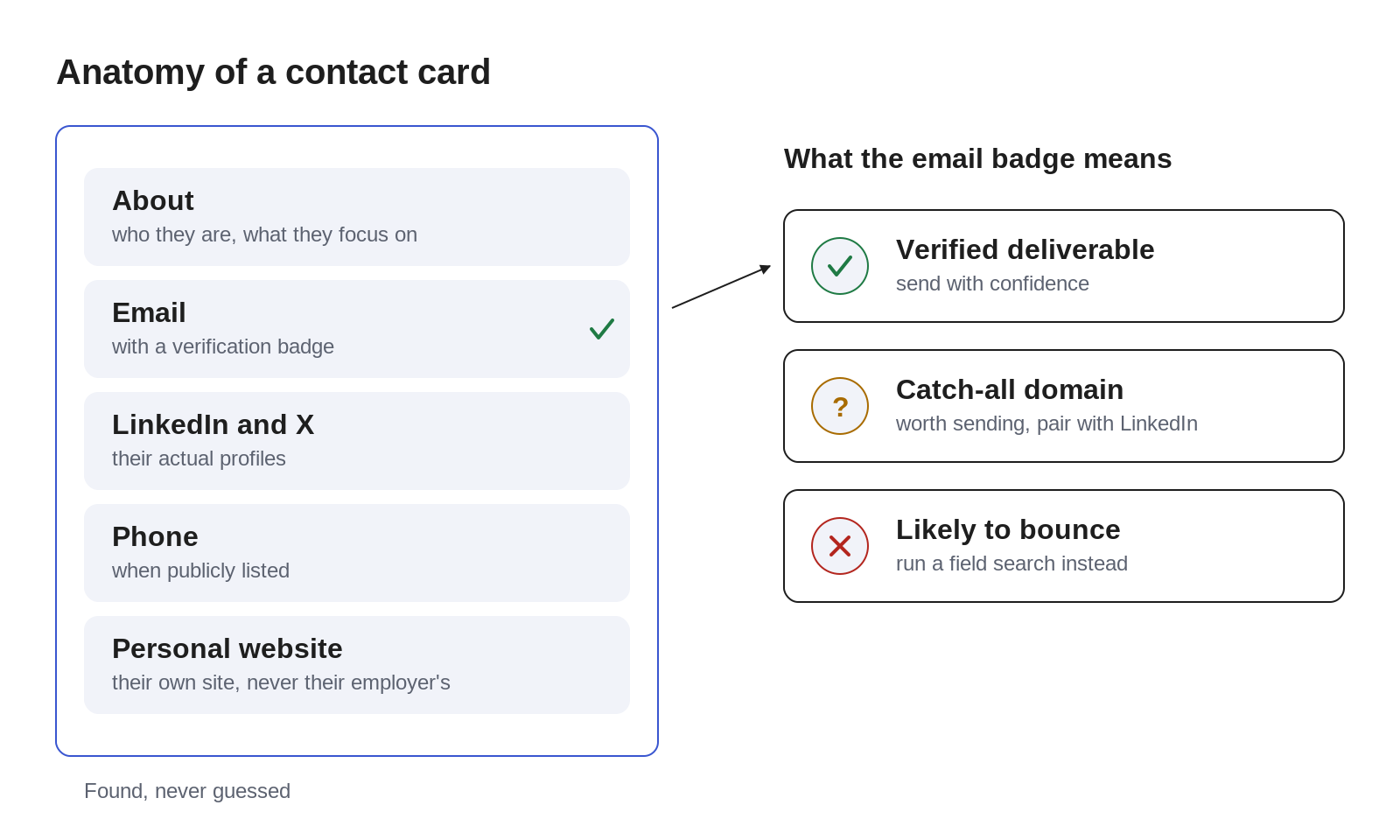
Click a person's chip to open their contact card, a mini-profile with everything Pioneer found:
- About: a short summary of who they are and what they focus on
- Location: where the person is based (city, region). Read off the LinkedIn profile card, no extra search.
- Email: with a verification badge: ✓ deliverable, ? uncertain (catch-all domain), ✗ likely to bounce
- LinkedIn and X: their actual profiles
- Phone: when publicly listed
- Personal website: their own site, portfolio, blog, or newsletter, when they have one. Always the person's own page, never their employer's homepage and never a directory listing.
If Pioneer looked for a channel and couldn't find it, the card says so, so you'll know the difference between "not found" and "not checked".
Grounded, never guessed
Contact details only appear when Pioneer actually found them on a real page. Emails are never pattern-guessed, and generic inboxes (info@, sales@) are never presented as a person's email. Every detail is tied to the specific person by name, so a colleague's email at the same company won't be attributed to them. Why so strict: one confidently-wrong email costs you a bounce, a burned first impression, and your trust in everything else on the card. An honest blank is the better deal.
It keeps digging
If a person is missing details (no email yet, no LinkedIn), re-running enrichment picks up where it left off and keeps searching, filling gaps without overwriting anything already found. For one specific missing detail, you don't need a full re-run: hover the empty field on the contact card and click the search icon that appears (Search?), and Pioneer chases just that field. The same control appears on empty property values. See Correct Pioneer's Research.
The full person workflow (choosing your champion, reading the card, turning it into outreach) has its own guide: Find the Right People.
Chain properties that build on each other
Some properties depend on others: "CEO LinkedIn" needs to know who the CEO is first; "Local Regulations" needs the headquarters city. Pioneer handles this through property dependencies:
- In the property editor, look for the Depends on option
- Select which property this one depends on
- Save
Pioneer enriches parent properties first, uses their values as context for the children, and figures out the right order automatically.
Example chain:
Company Name (no dependency)
    ↓
Company LinkedIn URL (depends on Company Name)
    ↓
CEO Name (depends on Company LinkedIn URL)
    ↓
CEO Email (depends on CEO Name)
Properties at the same level run in parallel, so you don't need to think about scheduling, just about what depends on what.
(For reaching people specifically, skip the chain: a single Person property does the identify-and-research work in one step, with verification built in.)
Ask for data the web can answer
Extract what you'll actually use. Every property adds a column to your board and your exports. Properties "just in case" are noise you'll scroll past forever.
Be specific. "Contact info" is vague. "CEO Email" or "Head of Sales LinkedIn" is specific and extractable.
Prefer public, consistent, unambiguous data. Properties work best for information that's publicly available, consistently formatted across leads, and has one clear answer. They're weakest on private data, subjective assessments, and questions that need interpretation.
Where property values show up
- On each lead's detail view
- On the pipeline board (properties can be shown as columns)
- In CSV exports: each property becomes a column, and person properties flatten into name, LinkedIn, email, and contact-detail columns. See Export Your Leads.
Next steps
- Find the Right People: the person-property workflow, end to end
- Correct Pioneer's Research: fix a wrong value; chase a missing one
- Export Your Leads: take the dossier with you
Need help?
If you have questions, reach out to us at support@pioneerclimate.com